
🗓️ Block Dates & Time Buffers: Take Control of Your Rental Schedule
Prevent bookings on holidays, add travel time between jobs, and manage your party rental schedule with ease. Never get double-booked or overworked again.
Updated:
Table of Contents
Take Control of Your Rental Schedule
Running a party rental business means juggling multiple deliveries, setups, and pickups—often all in the same day. Without proper scheduling controls, you could end up with back-to-back jobs that leave no time to travel, or bookings on days you've planned to take off.
RentalSetup gives you two powerful scheduling features to solve these problems: Blocked Dates & Times and Time Buffers Between Jobs. Together, they ensure your schedule works for you—not against you.
🎯 What You'll Learn:
- How to block entire days for holidays, vacations, or personal time
- How to block specific hours while keeping the rest of the day open
- How to add a time buffer for travel between jobs
- What customers see when they try to book blocked times
- Best practices for managing your rental schedule
Ready to take control of your rental schedule?
Start Your Free Website TodayWhy Block Dates for Your Rental Business?
Without the ability to block dates, your website is open for bookings 24/7—even on days you can't fulfill orders. Customers could schedule rentals on your family vacation, major holidays, or days when you have personal commitments.
❌ Without Blocked Dates
- Customers book on your vacation days
- You get orders on holidays you planned to take off
- You have to manually reject and refund bookings
- Frustrated customers who thought they had a booking
✅ With Blocked Dates
- Block holidays and vacations in advance
- Customers automatically see unavailable dates
- No manual rejections needed
- Peace of mind on your time off
💡 Common Use Cases: Christmas, Thanksgiving, family vacations, personal appointments, equipment maintenance days, or any time you simply don't want to work.
How to Block Dates & Times
Blocking dates in RentalSetup is simple. Follow these steps:
- Go to the Site Settings page in your admin dashboard
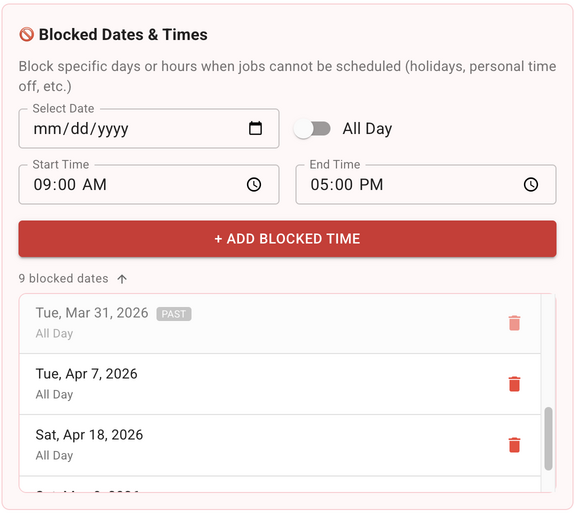
- Find the "Blocked Dates & Times" section
- Select a date from the calendar picker
- Click "+ Add Blocked Time" to add it to your list
- The date will appear in a list below the calendar
By default, the entire day is blocked. Customers won't be able to book any rentals for that date.
Watch this video to see how to block dates and set time buffers in RentalSetup:
Block Partial Days (Specific Hours)
What if you only need to block part of a day? Maybe you have a doctor's appointment from 2-3 PM but can still do morning and evening deliveries. RentalSetup lets you block specific time ranges instead of the whole day.
📋 How to Block Specific Hours:
- Select your date from the calendar
- Toggle OFF the "All Day" switch
- Enter the start time (e.g., 2:00 PM)
- Enter the end time (e.g., 3:00 PM)
- Click "+ Add Blocked Time"
Now only that specific time window is blocked. Customers can still book rentals outside those hours on the same day.
Example: Block 2:00 PM - 5:00 PM on April 15th. Customers can still book 9 AM - 12 PM or 6 PM - 9 PM rentals on that day.
Manage Your Blocked Dates List
All your blocked dates appear in a list below the calendar. This makes it easy to see your upcoming unavailable times at a glance and manage them efficiently.
Sort by Date
Click the up/down arrows to sort dates chronologically or in reverse order
Delete Entries
Click the delete button next to any entry to remove it from your blocked list
Count Display
See how many dates you have blocked at a glance with the count indicator
💡 Pro Tip: Past dates are automatically dimmed with a "PAST" label so you can easily identify which blocked times have already passed.
Why Use a Time Buffer Between Jobs?
Picture this: You have a bounce house rental that ends at 2:00 PM, and another customer just booked a 2:10 PM delivery across town. How are you supposed to pick up from one location and deliver to another in 10 minutes?
The Time Buffer feature solves this problem. It automatically prevents new bookings within a certain window of your existing jobs, giving you time to:
- Travel between job locations
- Set up and break down equipment properly
- Handle unexpected delays without rushing
- Maintain quality service without stress
🚗 Real-World Example:
Sally owns a teepee rental business. A customer booked a teepee for April 1st from 10:00 AM - 12:00 PM. Two weeks later, another customer wants to book 12:00 PM - 2:00 PM on the same day. Without a time buffer, this would be allowed—but Sally needs at least 30 minutes to travel between locations. With a 30-minute buffer set, the second booking is automatically prevented until 12:30 PM.
How to Set the Time Buffer
Setting up a time buffer takes just a few seconds:
- Go to the Site Settings page
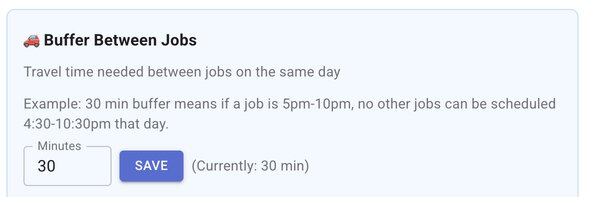
- Find the "Buffer Between Jobs" section
- Enter the number of minutes you need (e.g., 30)
- Click Save
Example: A 30-minute buffer means if a job is scheduled 5:00 PM - 10:00 PM, no other jobs can be booked from 4:30 PM - 10:30 PM that day.
💡 How much buffer do you need? Consider your average travel time between jobs. If most of your deliveries are within 15 minutes of each other, a 30-minute buffer gives you comfortable wiggle room. For larger service areas, consider 45-60 minutes.
What Customers See
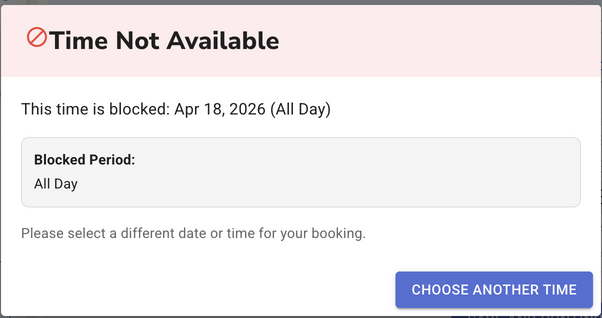
When a customer tries to book a time that conflicts with your blocked dates or time buffer settings, they'll see a friendly dialog message explaining that the selected time isn't available.
The dialog clearly communicates:
- That the selected time is unavailable
- A prompt to choose a different time
- Details about which time is blocked (for blocked dates)
This prevents confusion and guides customers to select available times without frustration.
🛒 Cart Support: If a customer has multiple items in their cart, the dialog will specify which product has the scheduling conflict, making it easy to fix without losing their entire order.
Best Practices for Scheduling
1. Block Holidays in Advance
At the start of each year, block all the major holidays you plan to take off—Christmas, Thanksgiving, New Year's, etc. This prevents last-minute scrambling to reject bookings.
2. Plan Your Vacations Early
As soon as you book a vacation or plan time off, add those dates to your blocked list. The earlier you block, the fewer potential conflicts you'll have.
3. Be Realistic with Time Buffers
Don't set your buffer too short hoping to squeeze in more jobs. A realistic buffer (30-60 minutes) ensures quality service and reduces stress. Your customers will appreciate punctuality.
4. Use Partial Blocks Strategically
Instead of blocking entire days for small appointments, use partial-day blocking. This keeps your calendar open for bookings while protecting your personal commitments.
5. Review and Clean Up Past Dates
Periodically review your blocked dates list and remove old entries that have passed. While they don't affect booking, a clean list is easier to manage.
Start Managing Your Schedule Today
Blocked dates and time buffers are essential tools for any party rental business owner who wants to maintain work-life balance while providing excellent service. With RentalSetup, these features are built right into your website—no extra software or complicated setup required.
Take a few minutes today to:
- Block any upcoming holidays or time off
- Set a realistic time buffer between jobs
- Review your current blocked dates list
Ready to take control of your rental schedule?
Build Your Free Website NowCheck out our complete setup documentation to learn more about all the scheduling and management features available for your rental website.
You can checkout our documentation page to see how some of the features from the RentalSetup platform can help you with your rental business.
Checkout our Facebook page for updates and tips.
RentalSetup
The easiest way to build your rental business website. Get started for free.
Legal
Privacy Policy© 2026 RentalSetup. All rights reserved.