
Set up mileage-based delivery fees and service areas
Charge party rental delivery by distance from your headquarters. In Site Settings → Delivery Areas, add your HQ address, set mile ranges with prices, and block orders outside your service area. Watch the video, then follow the steps below.
Recommended: charge delivery by mile ranges from your headquarters. Zip codes still work if you have not switched yet.
Switch to mileage pricing
If you already have zip codes saved, Site Settings shows a notice that you are using the older zip method. Click Switch to Miles to open distance pricing.
After you save your mile ranges, zip-code fee details are deleted. Finish entering your HQ and ranges before you rely on the new fees in live orders.
1. Set your headquarters address
Enter the address you deliver from (your yard, warehouse, or shop). RentalSetup stores that HQ and uses driving distance from it to the customer address when calculating the fee.
To turn distance pricing off later, remove the HQ address from Delivery Areas.
2. Add distance pricing groups (mile ranges)
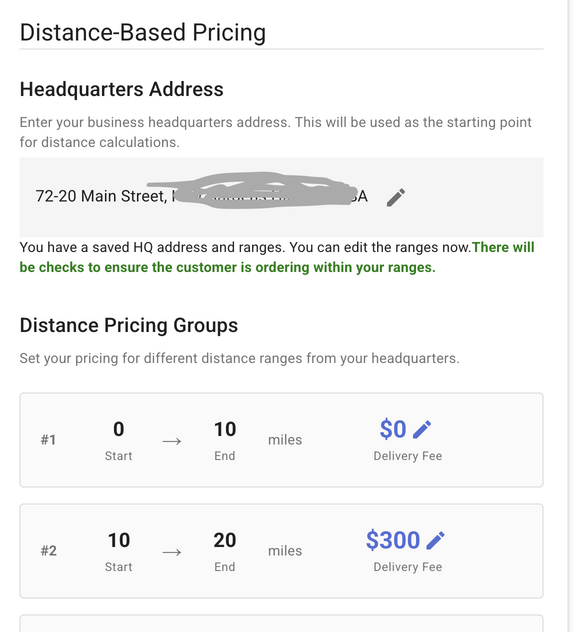
Under Distance Pricing Groups, add consecutive ranges. Each range has:
- Start miles — filled automatically from 0 for the first range, then from the previous range's end.
- End miles — farthest distance for this fee (must be greater than start).
- Price — delivery fee for addresses that fall in that range.
Example: 0–10 miles = $0 (local free zone), 10–25 miles = $50, 25–40 miles = $85. Keep adding ranges until you cover the farthest distance you are willing to drive.
The first range may be $0 for free local delivery. Later ranges need a price greater than $0.
If you save an HQ but do not add any mile ranges yet, deliveries stay open to everyone (no distance gate). Once you have ranges saved, RentalSetup checks that the customer is inside those ranges.
3. What happens at checkout
- For delivery orders, distance is measured from your HQ to the customer address.
- The matching mile range sets the delivery fee on the order summary.
- Addresses farther than your last range are blocked so you do not accept jobs outside your service area.
- Customer pickup (CPU) skips delivery fee and distance checks.
Tax and how fees appear on invoices are covered in Add taxes and delivery fees.
Legacy option: zip code delivery areas
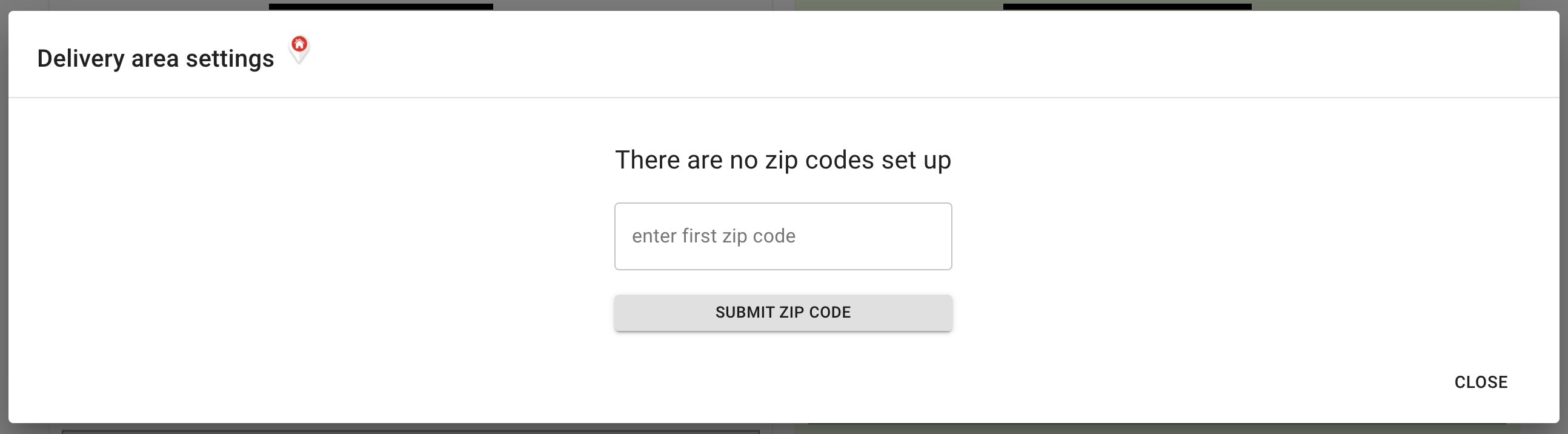
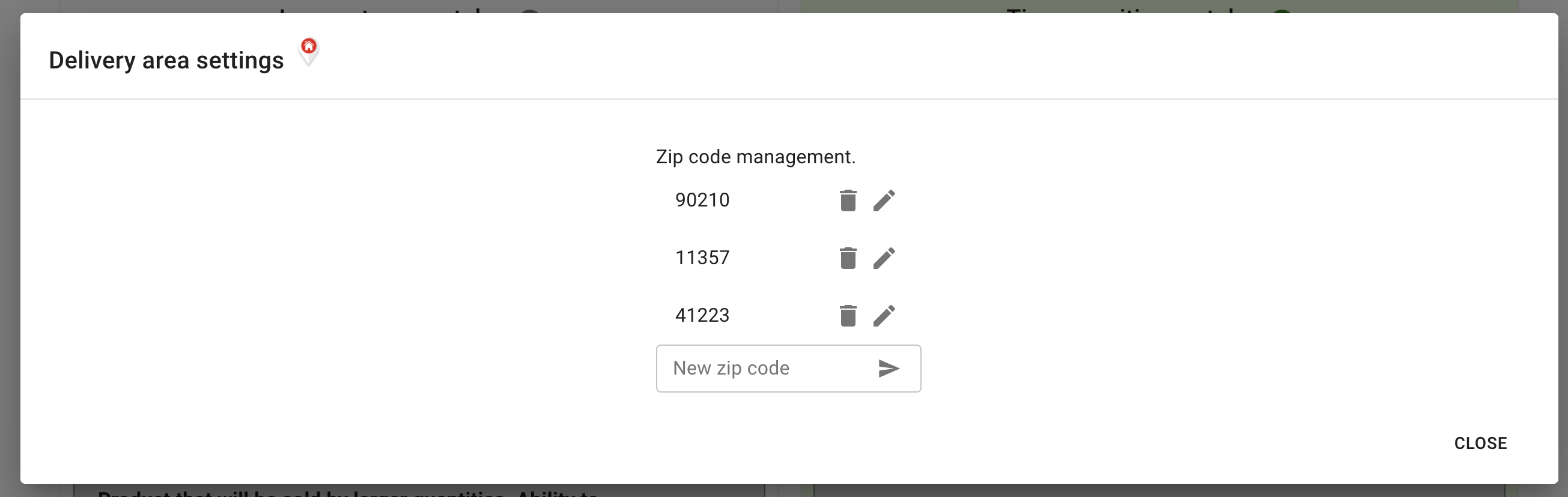
Before mileage pricing, delivery areas were a list of allowed zip codes. If you have not switched to miles, you can still add, edit, and delete zip codes and set a fee per zip. Jobs whose postal code is not in that list are rejected.
Edit, delete, or add zip codes from the same Delivery Areas section:
Prefer mileage when you can—it prices by real distance instead of a flat fee per zip.
Frequently asked questions
Can I offer free local delivery by mileage?
Yes. Set your first mile range with a price of $0 for a free local zone, then add higher ranges with delivery fees.
What happens if a customer is outside my mile ranges?
Addresses farther than your last range are blocked so you do not accept jobs outside your service area.
What happens to zip-code fees when I switch to miles?
After you save mile ranges, zip-code fee details are deleted. Finish entering your HQ and ranges before relying on the new fees in live orders.
Do pickup orders use mileage delivery fees?
No. Customer pickup (CPU) skips delivery fee and distance checks.
RentalSetup
The easiest way to build your rental business website. Get started for free.
Legal
Privacy Policy© 2026 RentalSetup. All rights reserved.