
Check Availability Button for Your Party Rental Product Page
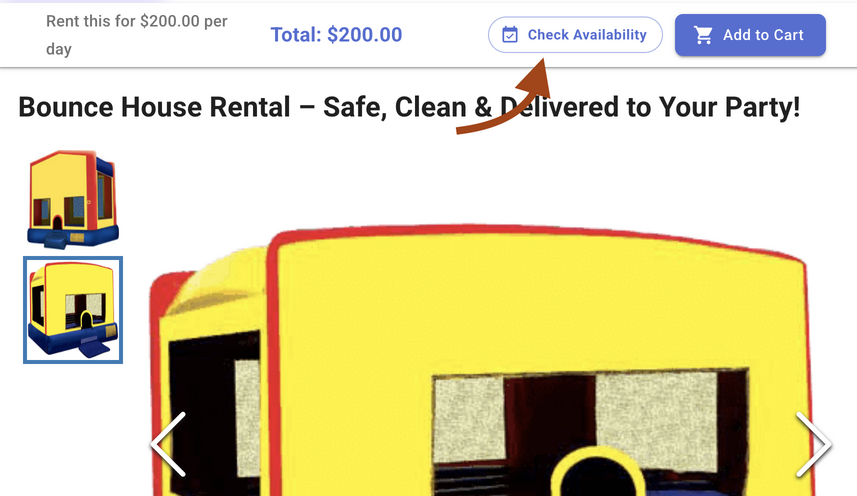
The Check Availability button lets potential customers instantly see whether a bounce house or party rental item is open for their event dates — right on the product page, before they even start the checkout process.
When a customer clicks the button, a dialog opens where they enter a start and end date. The RentalSetup.com party rental software checks against existing bookings in real time and shows whether the item is available. If they want to move forward, a built-in contact form lets them send you a message and you receive an email notification right away.
This feature is designed specifically for party rental businesses — bounce house companies, inflatable rental operators, and event rental providers who want to reduce back-and-forth phone calls and give customers a self-service way to check dates.
Video chapters:
0:00 – Customer enters dates & sees real-time availability
0:30 – Contact form submission + email notification
0:50 – Updating inventory in the admin dashboard
1:24 – How to remove the Check Availability button
The Check Availability Button
On any product page in your party rental website, customers will see a Check Availability button displayed alongside the product details. The button is clearly labeled with a calendar icon so it is easy to spot. Clicking it opens a dialog without navigating away from the page.
How Customers Check Dates
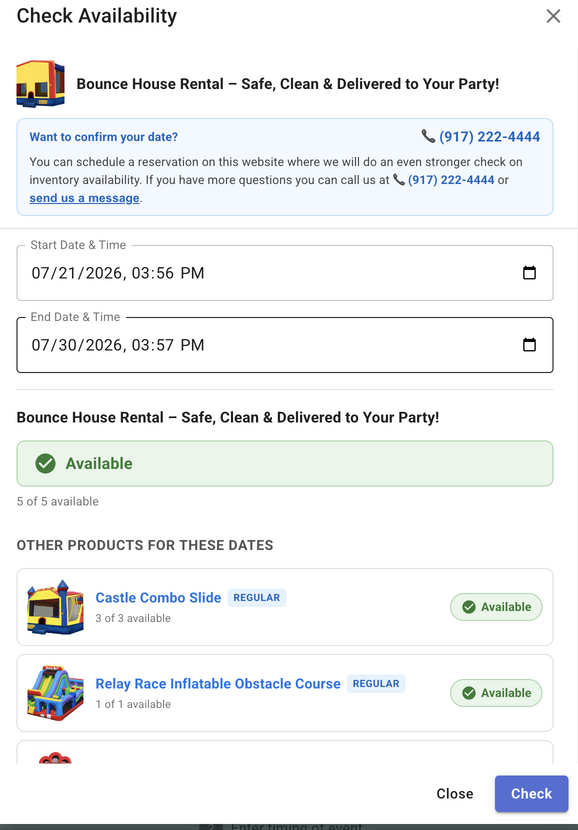
After clicking the button, a dialog opens with two date/time fields — a start date and an end date. The customer enters the dates of their event, then clicks Check. Your party rental software runs a real-time availability check against all existing bookings and immediately shows one of two results:
- Available — shown with a green badge, meaning no existing bookings conflict with those dates
- Not Available — shown with a red badge, meaning the item is already booked for those dates
If you have inventory set up (for example, you own three of the same bounce house), the dialog also shows how many units are available out of your total inventory count.
But it doesn't stop at the one product the customer was looking at. Below the result, the dialog generates a full list of your other products and shows the availability of each one for the same date range. Every product in the list is a clickable link that takes the customer directly to that product's page.
This is a built-in way to show more of your inventory at exactly the right moment — when the customer already has their dates in mind and is actively looking to book. If the item they originally checked is unavailable, they can immediately see what else is open and jump to it with one click. Even when the item is available, seeing the rest of your catalog can lead to add-ons or additional rentals they hadn't considered.
The Contact Form & Email Notification
After the availability result is shown, the dialog displays a prompt encouraging the customer to confirm their reservation. They have two options:
- Call you directly — if you have a business phone number set in Site Settings, a clickable phone link appears in the dialog so the customer can call with one tap on mobile.
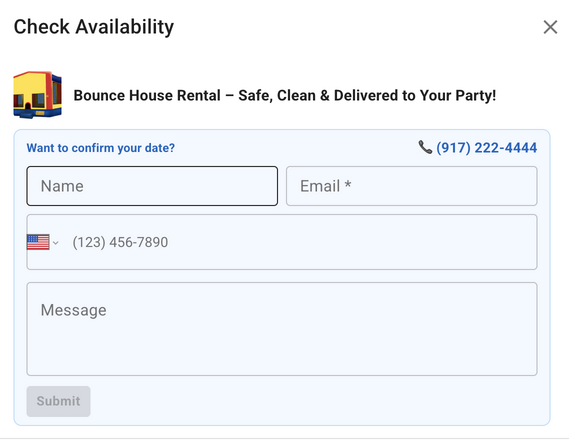
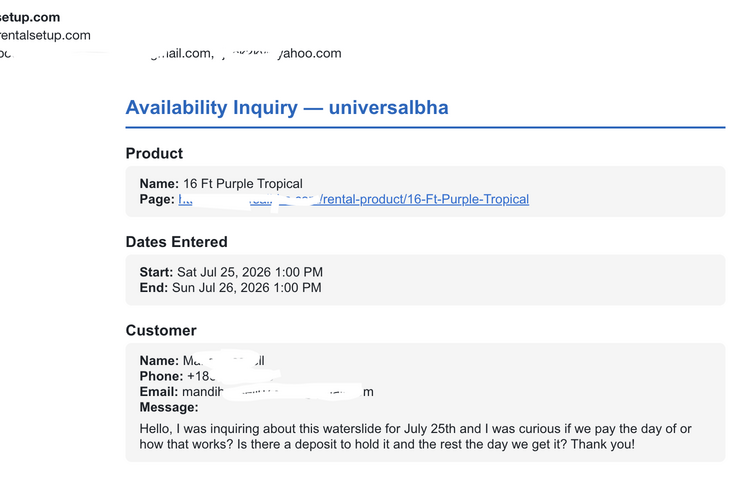
- Send a message — clicking "send us a message" expands a small contact form with fields for name, email, phone, and a message. When submitted, you receive an email notification with the customer's details and the dates they checked.
The availability shown is based on existing bookings — it is not a guaranteed hold. This is made clear to customers in a notice at the top of the dialog, so there is no confusion.
How to Enable or Remove the Button
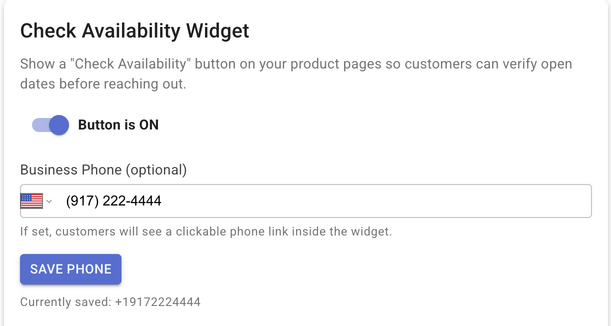
The Check Availability button is controlled from your Site Settings page. To get there, go to /admin/siteSettings or navigate to it from your admin menu. Look for the Check Availability section.
From there you can:
- Toggle the button on or off — use the switch to show or hide the button across all product pages instantly
- Set a business phone number — optionally add your phone number so customers see a clickable call link inside the availability dialog
If you want to remove the button entirely, simply flip the toggle to off and it disappears from all product pages immediately.
Keeping Availability Accurate
The availability check is only as accurate as your inventory and booking data. Here are a few things to keep in mind:
- Confirm your jobs: Bookings that are confirmed count against availability. Make sure you are confirming or canceling jobs in a timely way so the calendar stays accurate.
- Set inventory counts: If you own multiple units of the same item, update the inventory count on the product page in the admin dashboard. This allows the button to show "2 of 3 available" instead of just available or not available.
- Remind customers it isn't a hold: The dialog already includes a notice explaining that the result is based on current bookings and is not a guaranteed reservation.
RentalSetup
The easiest way to build your rental business website. Get started for free.
Legal
Privacy Policy© 2026 RentalSetup. All rights reserved.