
How to Customize Product Buttons on Your Party Rental Website Homepage
Each product card on your bounce house or party rental website homepage has its own button — typically a "Book Now" or "View Details" button. You can change the color, text, and style of these buttons to match your branding and help them stand out. This guide shows you exactly how to do it.
Step 1: Open the Homepage Editor
To get started, navigate to your homepage editor by going to /admin/homepage in your browser's address bar, or click the admin dropdown in your website header and select "Home Page."
If you haven't already, take a look at the homepage overview guide to get familiar with the edit bar and what else you can change on your homepage.
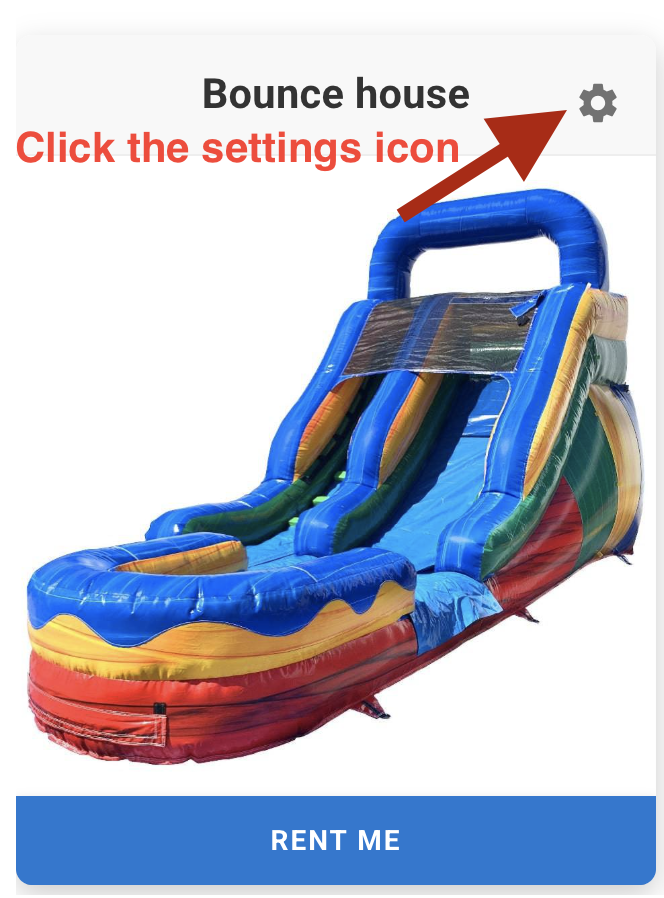
Step 2: Click the Settings Icon on a Product Card
On the edit homepage page, each product card has a small settings icon. Click that icon to open the button customization options for that product.
Step 3: Change the Button Style and Save
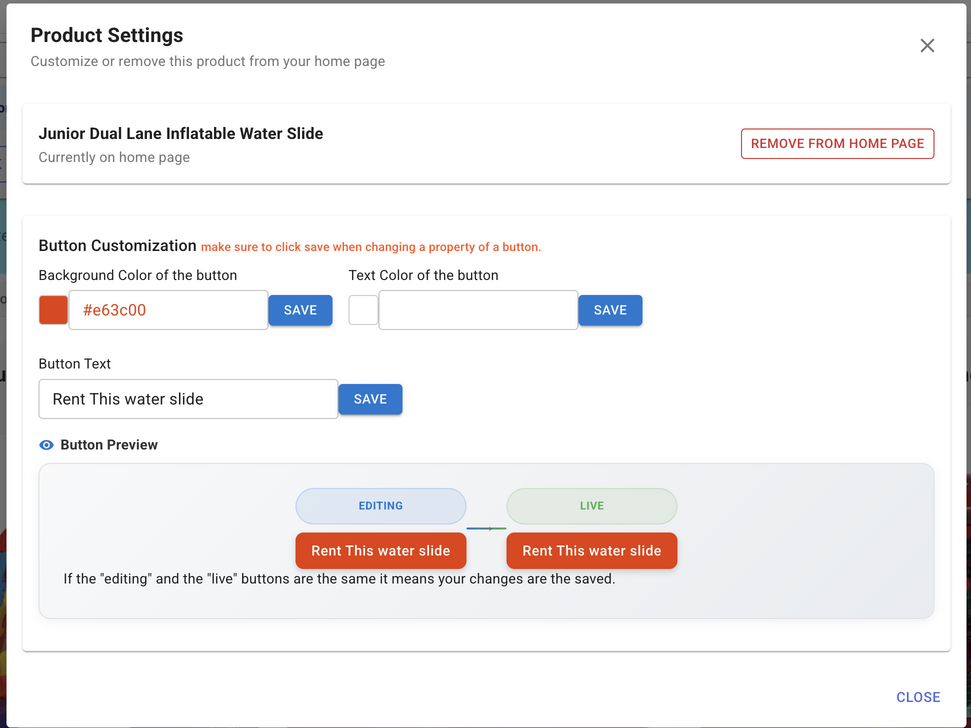
After clicking the settings icon, a dialog box opens with all the button customization options. Here you can change:
- Button color: Pick a color that matches your branding or makes the button pop against the product card background
- Button text: Change the label from the default to something more specific, like "Reserve Now" or "Check Availability"
- Text color: Make sure the text is readable against your chosen button color
- Other style options: Adjust sizing and other visual properties as available
Important: click the save button for each property you change before moving on. Changes are saved per field, not all at once.
Tips for Better Buttons
- Use a contrasting color: Your button should stand out from the product card background. High contrast means more clicks.
- Keep the text short: "Book Now", "Reserve", or "Check Availability" work better than long phrases.
- Be consistent: Try to use the same button color across all your product cards for a clean, professional look — or intentionally vary them if you want to highlight certain products.
RentalSetup
The easiest way to build your rental business website. Get started for free.
Legal
Privacy Policy© 2026 RentalSetup. All rights reserved.