
How to Prevent Double Booking for Party Rentals
If you rent out bounce houses, obstacle courses, tents, or any other equipment where you have a limited number of units, overbooking is a real problem. RentalSetup lets you set a maximum inventory per product and turn on an automatic availability check — so your website will never accept more bookings than you actually have inventory for a given date.
Full walkthrough: A complete overview of how the inventory and overbooking check works, where to find the setting, and what the customer sees.
Quick overview: A short look at the overbooking check in action.
Step 1: Go to the Product Edit Page
Log in to your admin and navigate to the edit page for the product you want to set inventory limits on. Each product has its own inventory setting, so you can set different limits for different items.
Step 2: Set the Inventory Amount and Turn On the Check
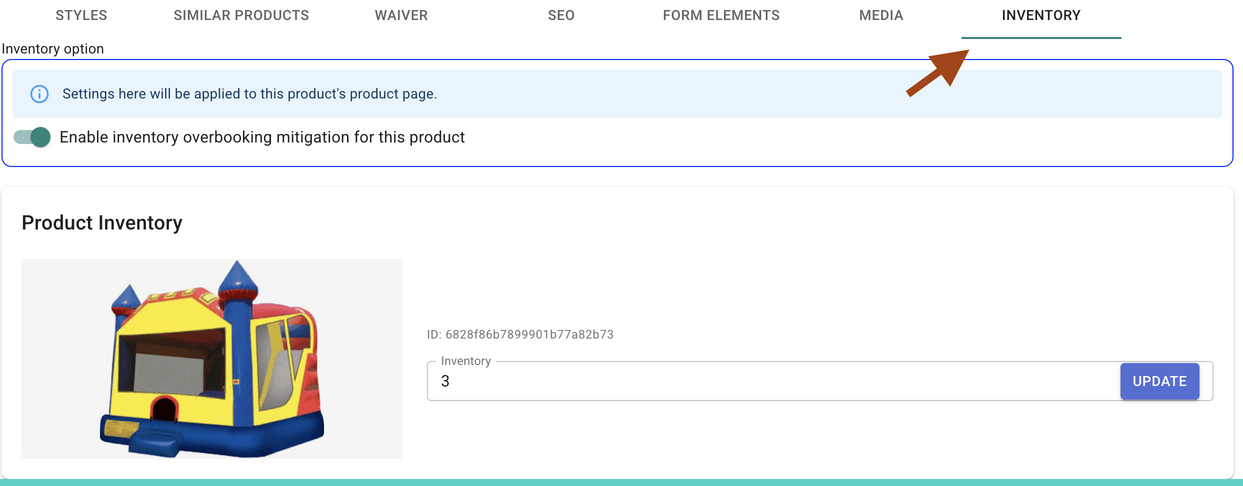
On the product edit page, find the inventory section. Here you can enter the maximum quantity you have available for that product. You'll also see a button to activate the inventory overbooking check — turn this on to enable automatic availability checking when customers try to book.
If the setting is off, all jobs will be accepted regardless of how many units are requested. Make sure to turn it on if you want the system to enforce inventory limits.
What Happens When a Customer Books
Once the inventory check is turned on, here's what happens when a customer tries to make a booking. After they enter their date and click continue, the system checks whether the requested quantity is available for that date. You'll see a loading animation while the check runs — it says "checking to see if your selected items are available for that date."

What the Customer Sees When There's a Conflict
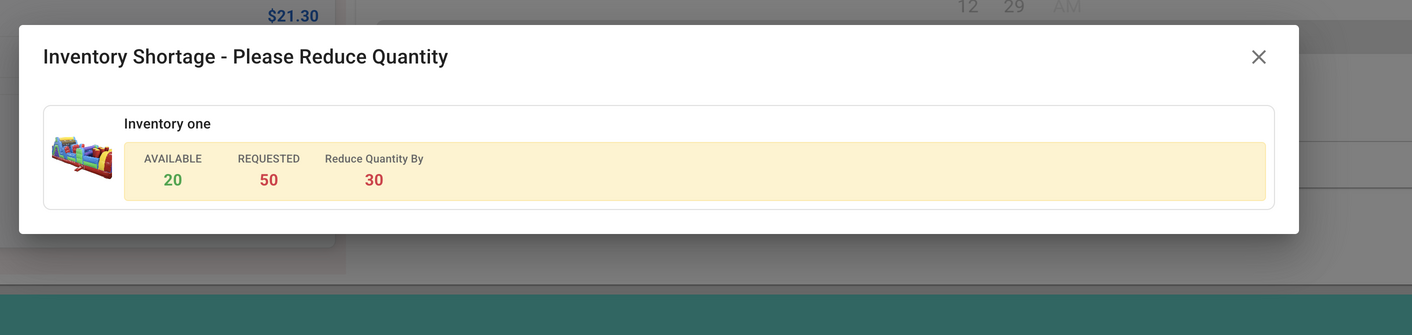
If the requested quantity exceeds what's available for that date, the customer sees a clear message telling them exactly what the problem is and how to fix it. For example, if a customer requests 50 units of an obstacle course but only 20 are available, they'll see a message saying there are 20 available and they need to reduce their quantity by 30 to complete the booking. No guessing — they know exactly what to change.
Blocking Dates and Setting Time Buffers
Inventory checking works alongside your date and scheduling settings. If you also want to block out specific holiday dates where you don't take jobs, or add time buffers between rentals so you have setup and teardown time, see the guide on blocking dates and time buffers for party rental scheduling.
RentalSetup
The easiest way to build your rental business website. Get started for free.
Legal
Privacy Policy© 2026 RentalSetup. All rights reserved.