
Create a Party Rental Package
These are the steps to build a package from products you already have. The package has its own price. For what a customer sees on the product page, and how the inventory of the items inside still counts, see party rental packages: one price, and the inventory still counts.
Demo: Creating a package, adding items, and the overbooking check.
Step 1: Make the product a package
On the create page, set the name and the price per day. That price is what the customer pays. The prices of the products inside the package are not added on.
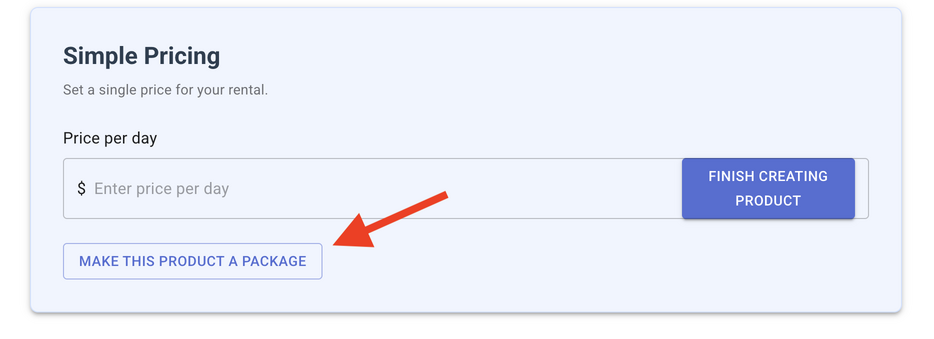
On simple pricing, click Make this product a package.
Step 2: Add products you already have
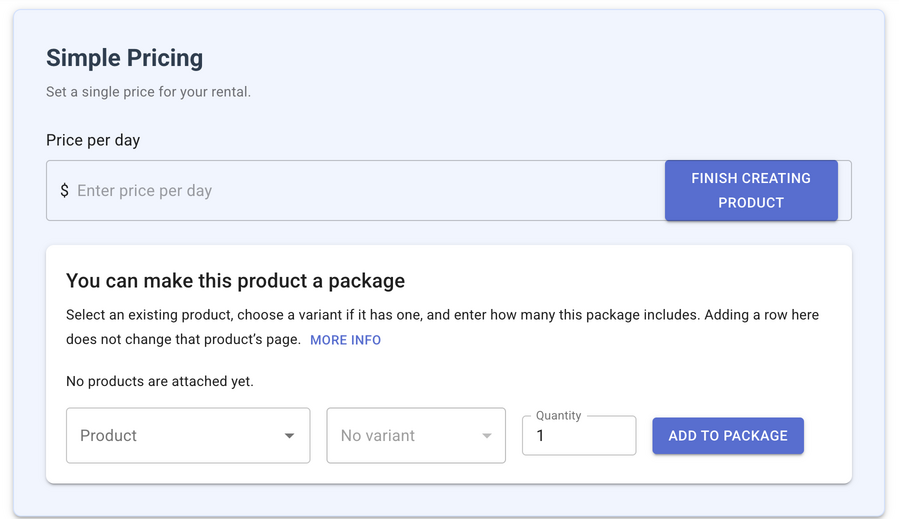
Search for a product, then choose it. If it has variants, choose the option. An 8 foot table and a 6 foot table are separate options. The list shows In stock for the option you pick. Enter the quantity included in the package, then click Add to package.
Step 3: Stay within the stock
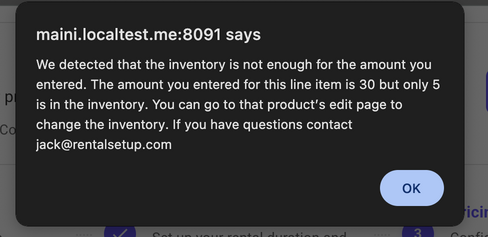
A quantity higher than the stock does not get added. In this example, 30 bounce houses were entered, and only 5 were in stock. The dialog says how many you entered and how many are in inventory. Lower the quantity, or raise the inventory on that product, and add it again.
Step 4: Add more items on the edit page
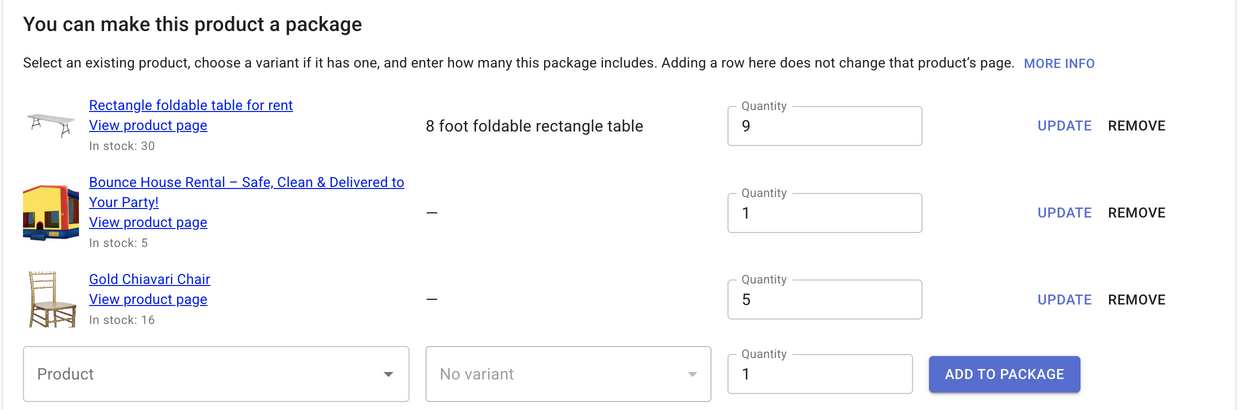
After the product exists, open its edit page and go to the inventory tab. Simple pricing and a price table keep one shared list there. Search, choose a variant when the product has one, set the quantity, and add it. This package includes a table, a bounce house, and chairs. The quantity of each item is shown.
Step 5: Insert the package table
In the page editor, click Package table, then Insert table. The table title is The following are included in the order. The columns are a photo, Item, and Quantity. A variant line uses that variant’s photo when it has one, and the product photo otherwise. The table is a copy of the items at the moment you insert it. If you change the package later, delete the table and insert it again.
The picture of that table on the product page is in the article: what the customer sees.
Step 6: Find the package on the product list
On the products list, Is a package shows products that contain other items. Used in a package shows the chairs, tables, and other products those packages include.

Step 7: Turn on overbooking mitigation
On the product edit page, open the inventory tab and turn on Enable inventory overbooking mitigation when a customer books on this product page. The check looks at other jobs for each item, whether that item was booked on its own or inside a package.

Step 8: Read the shortage warning
If a package includes 20 tables and only 30 tables are in inventory, one job can use that date range. A second job on those dates needs another 20. The dialog says how many are already reserved and that there are not enough available.

Two limits while you add items
A product that is already inside a package stays a regular product. Remove it from that package before giving it package items of its own. A package cannot be put inside another package. The search leaves packages out.
RentalSetup
The easiest way to build your rental business website. Get started for free.
Legal
Privacy Policy© 2026 RentalSetup. All rights reserved.